Window and game area
The window of the game is the area in which the game is displayed. It DOES NOT refer to the system window that includes the toolbar, title bar on the top and a frame on the other three sides.
Fullscreen
The "De/activate fullscreen" action allows you to toggle the game between fullscreen on/off. When the window is in fullscreen, it will take up as much area as possible.
The action also takes a second parameter, Keep aspect ratio (HTML5 games only). When set to "YES", black borders are added if needed so the game keeps its original aspect ratio; when set to "NO", the game is stretched to fill the whole screen.
Window margins
The margin of the window is the distance between the side of the window and the game window displayed. Shown below is the preview of a game with 100 px margins on all 4 sides.
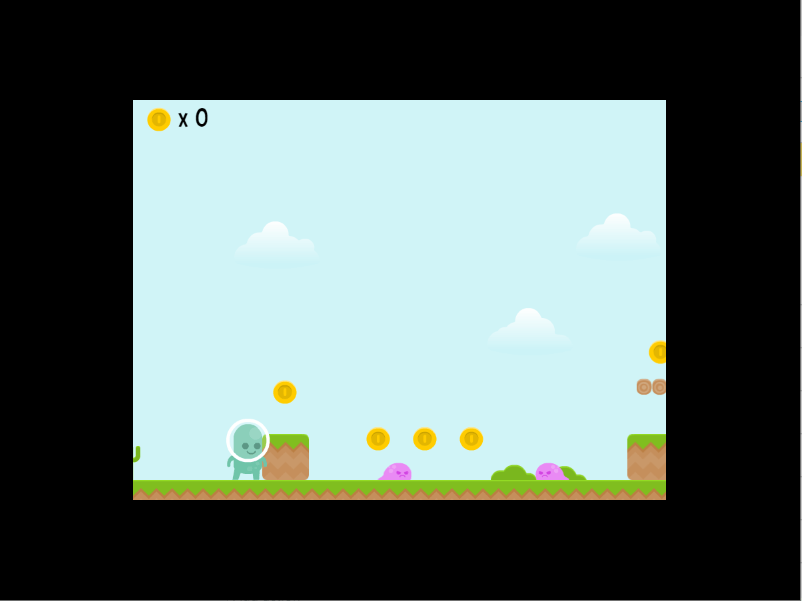
Notice the black borders on all for sides of the window. The width of the borders is 100px.
Size of the window
Size of the window is the number of pixels visible in the game. The "Width" field refers to the number of pixels in the horizontal directions while the "Height" field refers to the number of pixels in the vertical direction.
While setting the size of the window, if you want to scale the current area to the set resolution, choose "NO". This will decrease the visual quality of the game if the size entered is lower than default and will increase the visual quality if the size entered is higher than the default size.
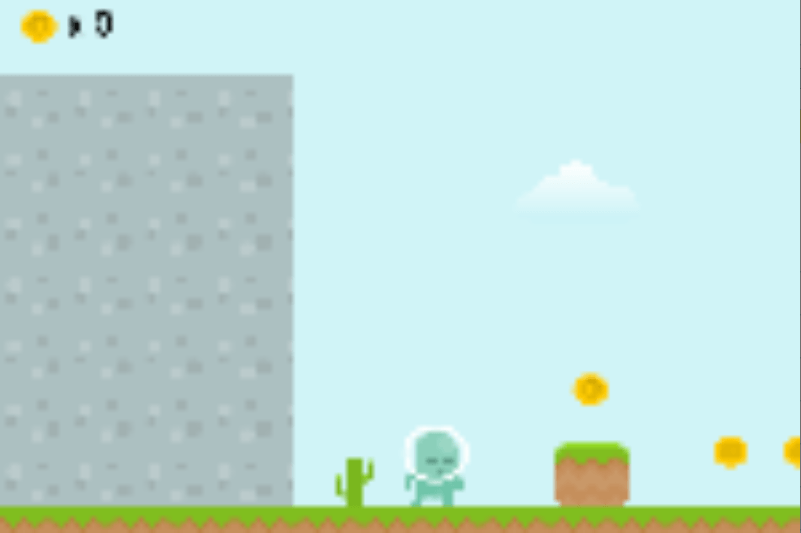
If you want to scale the set resolution to the window area, choose "YES". This will crop the window and display only the number of pixels entered in the action. This does not affect the visual quality as long as the game is scaled up or down because of the size of the system window.
Note
The game is cropped starting from the top-left corner of the game.
Game window size vs. game resolution
These are two different things:
- The game resolution is the number of pixels the game renders internally (the size of the camera view). Change it with the Game resolution action. This does not change the size of the window — instead, the rendered image is scaled to fit it.
- The game window size is the actual size of the window on the player's screen. Change it with the Game window size action. This only works on desktop (Windows, macOS, Linux); browsers and mobile devices ignore it.
The Game resolution resize mode action lets the game automatically adapt its resolution when the window or screen size changes — set it to adaptWidth to keep the height fixed and adjust the width, adaptHeight to keep the width fixed and adjust the height, or leave it empty to disable. The companion action Automatically adapt the game resolution controls whether this re-adaptation also happens at runtime (not only when the game starts).
Center the game window
The Center the game window on the screen action repositions the window in the middle of the screen. This only works on Windows, macOS and Linux — it has no effect in a browser or on iOS/Android.
Window icon
Use the Window's icon action to change the icon of the game's window at runtime, by providing the name of a resource image. This is useful for games where the icon should reflect game state (for example, a different icon depending on the current player or level).
Advanced window management
For finer control on desktop (focus, visibility, minimize/maximize, always-on-top, content protection, window position), GDevelop also provides an Advanced window management extension. Its actions only work on Windows, macOS and Linux and are ignored on other platforms.
Window title
The window title is the name of the window that is visible on the title bar (located at the top) of the window. The default title name is "Preview of ProjectName" during a preview.
By default, the game name is used for the executable name (on Windows, macOS and Linux), the app name (on Android and iOS) and the title bar (on Windows, macOS and Linux) (and the page title for HTML5 games). You can learn more about it in game properties.
With the action to change the title, the title bar on Windows, macOS and Linux will be changed. Nothing will be visible on Android and iOS. For HTML5 games, the web page title will be changed.
Reference
All actions, conditions and expressions are listed in the window reference page.